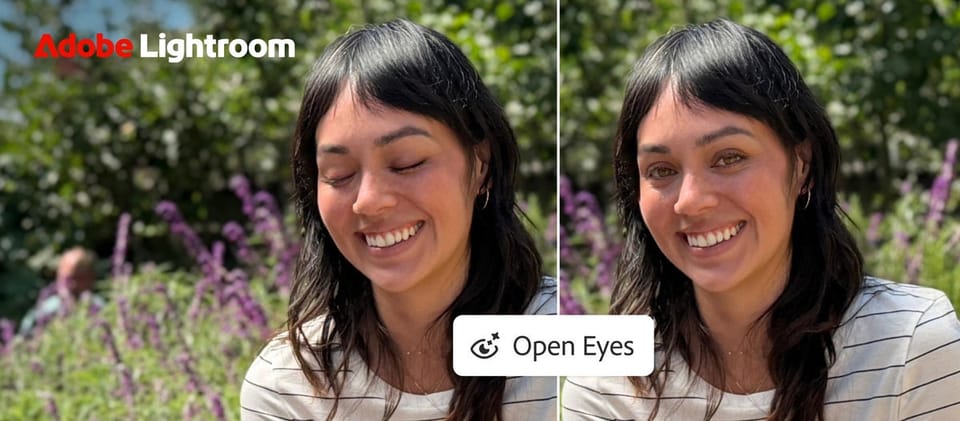
On October 19, 2026, Adobe used its official blog to announce two new tools in Lightroom on mobile that solve two problems every phone photographer knows intimately: the perfect group shot ruined by one person's blink, and the great photo that simply does not fit the platform's required format. The first tool, Open Eyes, reopens closed eyes in a single tap. The second, Generative Expand, extends a scene beyond its original frame to fit any aspect ratio. Both are live now on iPhone, iPad, and Android.
The news is not the idea of eye editing itself — Adobe has shipped a version of it in Photoshop Elements for nearly a decade. It is the method: generative AI conditioned on your own library, delivered in one tap, and free at the point of use, as Adobe's own announcement puts it. This guide explains how both tools actually work, who they genuinely serve, and how to fold them into a publishing workflow responsibly.
Primary source: Adobe's official blog post, October 19, 2026, confirmed by The Verge the following day.
What Adobe announced, exactly
The primary source is Adobe's official blog post dated October 19, 2026, titled "Give your photos a second chance with Open Eyes in Lightroom on mobile," confirmed the next day by coverage in The Verge and DPReview. The core claims:
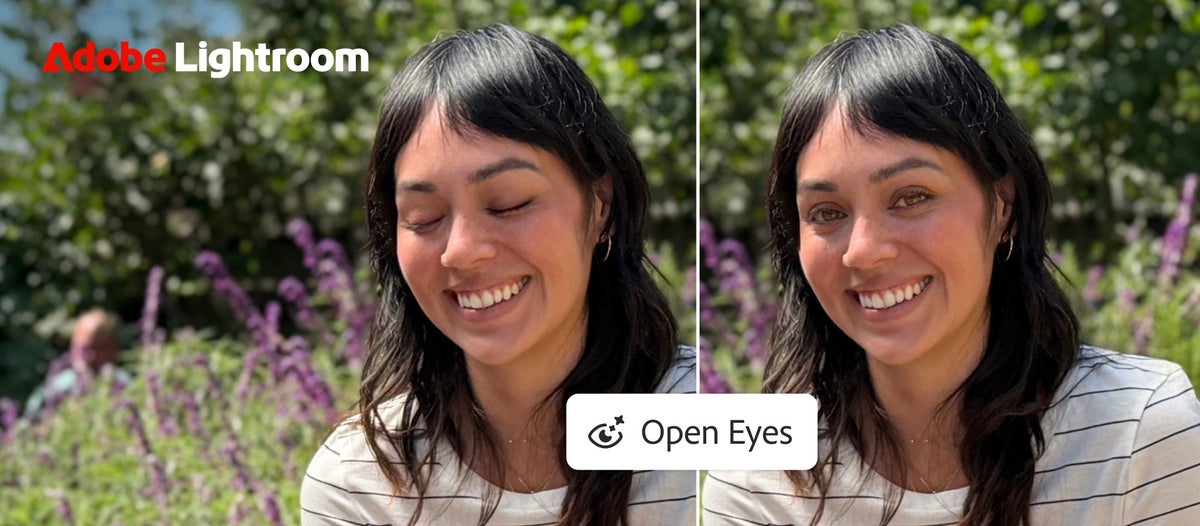
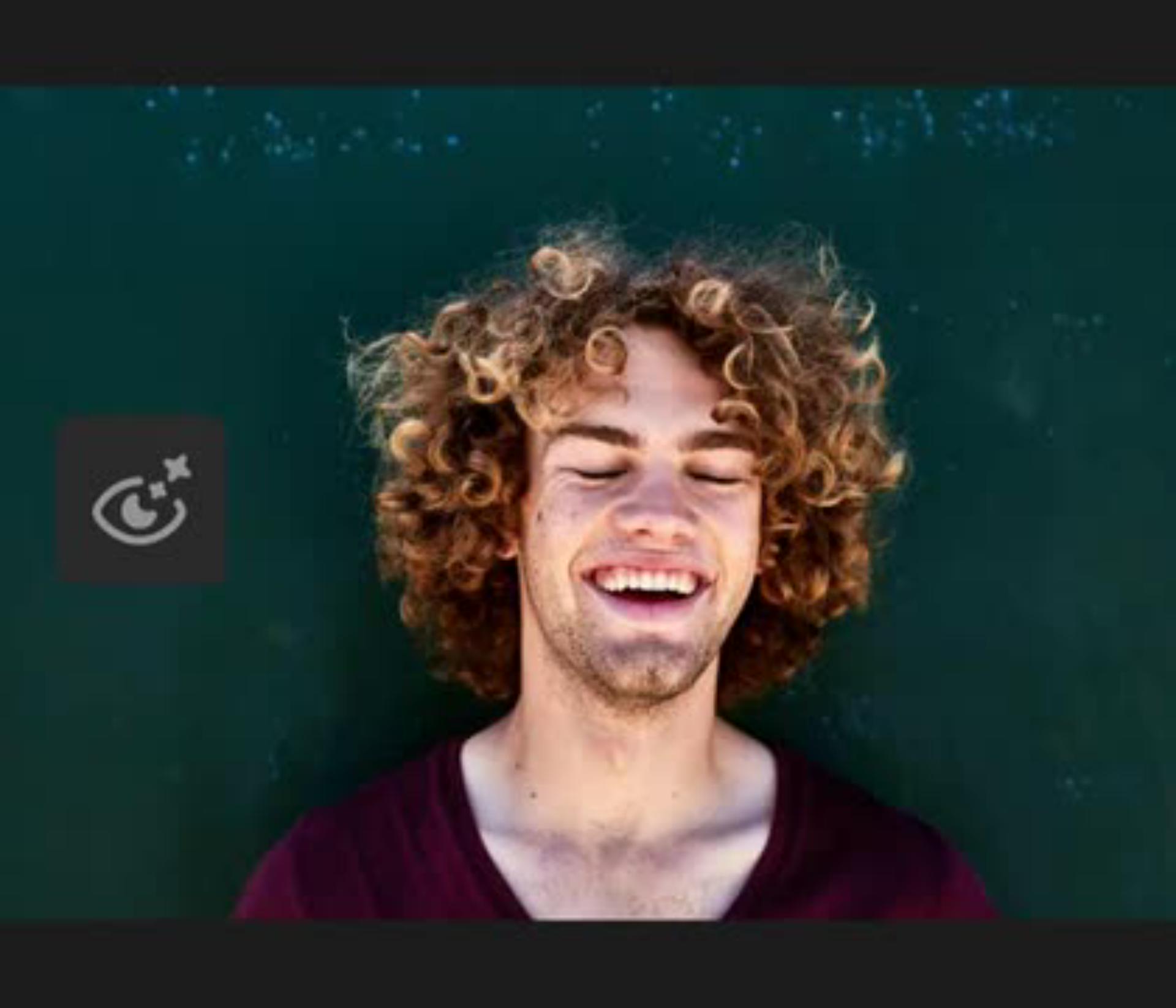
- Open Eyes: when the app detects closed eyes in a photo, it presents an Open Eyes Quick Action icon right over the image. One tap generates a natural-looking fix.
- Results that resemble the person: if you have other photos of that same person in your Lightroom library, the tool matches their eye color, shape, and size from those references — not generic eyes, but theirs.
- Generative Expand: extend the scene beyond the original frame to change aspect ratios, reframe a composition, or add breathing room around a subject — ideal for turning a landscape shot into a square post or a vertical story.
- Platforms: iOS, iPadOS, and Android, inside the Lightroom mobile app.
On pricing, Adobe's language states the tool creates a natural result "for free." The Verge, citing DPReview, adds an important nuance: users of the free version of Lightroom mobile get two attempts before the app prompts a subscription to an Adobe Creative Cloud plan that includes more AI tool credits. Practical takeaway: try it free, and learn where your need actually sits before subscribing.
How the tool works under the hood
The technical idea deserves a minute of any creator's attention, because it crystallizes where image tooling is heading industry-wide — the same trajectory we traced in our Krea 3 AI image editing guide:
- Detection first: the app scans the photo on open, and when it spots a face with closed eyes it surfaces Open Eyes as an instant suggestion — no menu digging.
- Generation conditioned on your library: rather than inventing generic eyes, the tool looks for other photos of the same person in your library and uses them as the reference for color, shape, and size. This is the decisive break from Photoshop Elements' old approach, which copied eyes from another photo you selected manually, with hit-or-miss results depending on how different the two images were.
- Lighting and pose matching: the generated eyes are composited to match the original photo's lighting and head angle — precisely where manual fixes used to fail most visibly.
Generative Expand follows complementary-generation logic: you define the new image boundaries, and the model synthesizes the missing pixels while keeping your subject exactly as captured — no warping, no re-rendering of the person.
What this means for you as a creator
If you shoot interviews, events, and people
This tool was designed for your exact scenario: a client meeting, a family gathering, an event coverage — the one group photo that had everyone in it, spoiled by a blink. Before today the options were a weaker backup shot or fifteen minutes in desktop Photoshop. Now: open, tap, save. For working photographers delivering to clients, it directly shrinks the "rejected shots" rate and recovers moments the client assumed were lost.
If you run social media accounts
Generative Expand is the bigger weapon: existing assets shot in one ratio can be extended to square posts or vertical stories without cropping heads or destroying composition. A designer managing several brand accounts across formats will save hours weekly. If you already juggle multiple design platforms, our earlier comparison of Canva Pro versus Adobe Express for creators helps place Lightroom inside Adobe's wider ecosystem.
If you are a professional photographer
Rejoice and beware in equal measure. The tool removes a tedious task — but it also raises the ceiling of what "normal" looks like: what used to be advanced professional retouching is now one tap for a casual user. The accruing value shifts to what happens before the tap (composition, light, concept) and after it (fine editorial control automation cannot reach). Use it in your workflow, and reposition your offer around what cannot be automated.
For everyone: transparency with your audience
Regenerating a person's eyes in an image you publish commercially or journalistically is a real generative edit. In marketing and social contexts it is broadly accepted; in documentary or news contexts, professional integrity calls for either restraint or disclosure. Platforms are progressively tightening labeling of altered media and global regulation is tilting toward disclosure — do not let one regenerated pair of eyes become a trust crisis with the audience you spent years building.
Quick comparison: Open Eyes versus what people use today
| Solution | How it works | Accuracy for the actual person | Price |
|---|---|---|---|
| Lightroom Open Eyes (new) | Automatic detection, one-tap generation, library-conditioned | High — matches eye color and shape from the person's photos | Free within attempt limits, then a Creative Cloud plan |
| Photoshop Elements (legacy) | Copies eyes from another manually chosen photo | Inconsistent, depends on the two images | Separate purchase |
| Full Photoshop | Manual multi-step generative tools | High, but time-consuming | Higher subscription |
| Free beauty apps | Generic eye filters | Low — generic results that resemble no one | Ad-supported free |
Lightroom's decisive edge is not generation per se; it is the rare trio of automatic detection, personal-library referencing, and one-tap execution inside the app that already manages your photos — no exporting and re-importing between three applications.
Honest limits and weaknesses
- Generated results are not infallible: hard cases — steep head angles, glasses, harsh side lighting, small faces in the background — may need manual touch-ups afterward, or may not be detected at all.
- Reference photos matter: matching eye color and shape works only if other photos of the person exist in your library. Without them you still get an acceptable result, but a less faithful one.
- The free-attempt wall: two tries on the free tier per DPReview's reporting — enough to evaluate, tight for repeated professional use.
- Privacy deserves a thought: the feature analyzes your library to build per-person references. If your photos include people who never consented to generative processing, the decision to run it is your professional and ethical responsibility.
- It cannot rescue a bad photo: a shaky or badly exposed shot stays bad. The tool saves the moment; it does not save the photography.
Rights and legal considerations: what the vendor says
Adobe ships its generative features under the Firefly umbrella — a system trained on licensed and public-domain assets, with Adobe offering indemnification to enterprise customers for commercial outputs under its stated terms. That positioning matters to commercial creators: using generative tools inside a responsible commercial stack is legally safer than pulling images from unknown sources, but it does not erase your responsibility for final use.
Three questions to hold in mind before commercial publishing: does the destination platform's policy permit generatively altered media — some now require disclosure for facial edits specifically? Do the people in the photo hold image rights over features you altered — first-time discovery that a person's eyes were regenerated without their knowledge opens ethical and, in many countries, legal objections? And if you shoot for clients, does the client know and accept the level of editing — an explicit generative-edit clause in photography contracts is becoming standard professional practice.
The practical rule that keeps you safe: edit to recover a missed moment (a blink in a real event), under clear conditions; do not edit to change reality (adding things that never happened, or altering expressions in documentary contexts). The difference between the two is the difference between a productivity tool and a slow-motion trust failure.
Common platform formats and how Generative Expand serves them
If managing image ratios is part of your day, here is the practical map where the new tool solves a chronic headache:
| Destination | Preferred ratio | Usual problem | How the tool helps |
|---|---|---|---|
| Instagram square post | 1:1 | Landscape shot cropped at both sides | Extend top and bottom instead of cropping sides |
| Stories and Reels | 9:16 vertical | Landscape image fills a third of the screen | Extend the backdrop vertically while the subject stays fixed |
| Article or blog hero | 16:9 | Vertical image renders small or distorted | Extend sideways into a balanced wide composition |
| Facebook ad | 4:5 or 1:1 | Ad copy space eats the composition | Add clean room around the subject for overlay text |
| Website banner | Custom wide sizes | No wide version of the shot exists | Generate a consistent extension of the original scene |
The operational win: all these versions generate from one file inside the app, instead of a new shooting session or compromised crops per platform. For Arabic e-commerce catalogs needing the same product in ten ratios, this alone is a genuine saving.
A suggested professional workflow
- Open the photo in Lightroom mobile and wait for the Open Eyes suggestion on faces with closed eyes.
- Apply the tap, then compare against the original — zoom to 100 percent on the eyes before saving.
- If the result needs improvement, add more photos of that person to your library first, then retry for a better match.
- Use Generative Expand to prepare every platform's required ratio before scheduling posts.
- Always keep the unedited original — you will need it if a platform asks you to document the edit or the client wants a raw version.
After the image comes the copy: a post pairing a well-saved photo with carefully written captions outperforms the image alone, every time. If drafting captions at scale is your bottleneck, generate a polished first draft with ARWriter and then rewrite it in your voice — the image stops the scroll, the words earn the follow.
Before and after: when does the tool genuinely save the day?
Let us make the judgment concrete with three common real-world scenarios. Scenario one: wedding or graduation coverage — the single family shot with everyone present, spoiled by the groom's or graduate's blink. Here the tool excels: many reference photos of the person exist from the same session, lighting is consistent, angles are close. The result is usually excellent on the first attempt. Scenario two: a one-time professional portrait of someone you photographed once — no library reference, an unusual angle. The result is acceptable but may need a manual pass, so treat the tool as enhancement rather than full rescue. Scenario three: a large group photo in a crowded indoor space with small faces — detection may miss some closed eyes, and distant faces generate less stable results, making a zoomed manual review mandatory before client delivery.
The lesson: output quality scales with your library's richness of per-person references. Hence the professional's early advice: always shoot a few extra close-ups of key faces in any session — seconds spent today save generative minutes tomorrow and visibly raise final quality.
Calibrate expectations for the expansion tool too: Generative Expand shines with regular backdrops — sky, wall, sea, stretching floor — and struggles with intricate repeating patterns or sign text near the frame edge. Review generated edges at zoom before publishing; the human eye catches pattern distortions faster than we assume.
Frequently asked questions
Is Open Eyes completely free?
Adobe describes the result as free on any photo, but coverage citing DPReview indicates free-tier users get two attempts before a subscription prompt for a Creative Cloud plan with more AI credits.
Which devices does it run on?
Inside the Lightroom app on iOS, iPadOS, and Android, per the October 19, 2026 announcement. Desktop is not part of this launch.
Does it work on old photos in my library?
Yes. The feature is available on any photo you open, and it is strongest with older shoots where other photos of the same people already exist in the library.
How is it different from the old Photoshop Elements feature?
Elements copied eyes from another photo you chose manually, with uneven results. Open Eyes generates eyes matched to lighting and pose, taps your library for likeness, and does it in one tap.
Can I use it on large group photos?
Yes — the app detects multiple closed-eye faces and offers the action on them, but stability drops on distant or small faces, so review at zoom before publishing.
The bottom line: lost moments are now recoverable
The power of this launch is its simplicity: two universal problems — a closed eye and a wrong ratio — now solved in one tap inside the app millions of photographers already use. The smart creator does not see "an AI toy" but a shortened path from capture to publish: a group shot saved, every platform ratio generated, and an audience receiving better content with zero waiting. Try it on the nearest group photo in your library, apply it to your next campaign, and measure the difference yourself.
And because a picture is half the work and words are the other half, start from ARWriter's writing tools to complete the equation.